 Milesheet
Set Milesheet up in five minutes
Add your car, choose how drives get recorded, and take the first journey. Everything else can wait.
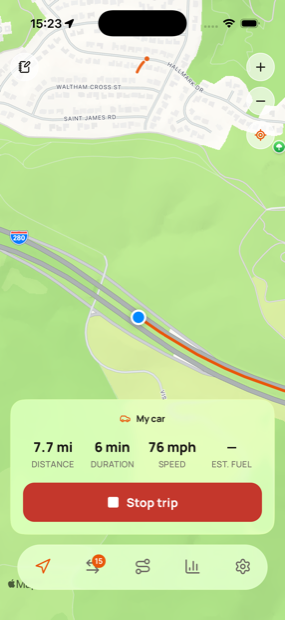
You do not have to set everything up before you drive. Milesheet works out of the box; this gets the three things right that make everything afterwards easier.
1. Add your car
Open Settings → Vehicles and tap the + button. The name is the only thing you have to fill in — "Van", "Daily driver", whatever you call it.
Two fields are worth a moment:
- Fuel economy (mpg) gives you cost estimates immediately. Do not agonise over it: once you have logged two full tanks, Milesheet replaces it with the figure your car actually returns.
- Number plate shows on your statements, which is exactly what an accountant wants to see against a claim.
If you drive more than one vehicle, add them all now. Each keeps its own economy, running costs and photo, and you pick which one a trip belongs to when you record it.
2. Decide how drives start
Open Settings → Tracking. There are three choices for departure detection:
- Off — you press Start yourself. Nothing runs in the background.
- Remind me — when you drive away from where you parked, you get a notification asking whether to record.
- Auto-record — Milesheet starts recording on its own and stops once you have been still for a few minutes.
Auto-record is the one that makes a mileage log stop being a chore, and it needs "Allow all the time" location. That is worth understanding rather than just tapping through: the app has to notice you leaving while it is closed, which is only possible with that permission. Nothing is uploaded — there is no server to upload to.
On Android, expect the start to lag a minute or two behind you setting off. The system batches geofence checks to save battery and there is no way around it.
3. Take a drive
Whichever mode you chose, drive somewhere. When you get back, the Track tab will show the journey, or the Trips tab will list it.
That is the whole setup. The next thing to learn is sorting trips, which is where the time actually goes.
While you are here
Two optional things that pay off later:
- Settings → Fuel & fill-ups — log a fill-up next time you are on a forecourt. Two full tanks with odometer readings and Milesheet knows your real MPG.
- Settings → Export & sync — point backups at iCloud Drive or a folder. Your data lives only on this phone, so a backup is the only thing standing between you and a lost year.